If you’ve been playing Minecraft for years, you know the feeling: the old textures just hit different. Those slightly rough, unpolished pixels remind you of your first hours in the game, your first handbuilt houses, and those first nights full of Creeper scares. That’s exactly the look the Programmer Art Texture Pack brings back, and it works with all current Minecraft versions including every new block and mob.
What is Programmer Art in Minecraft?
The name sounds weird at first, but there’s a simple explanation. When Markus Persson, better known as Notch, was developing Minecraft, he created all the textures himself. Even though he was a programmer and not an artist, he drew every single block and item by hand. This programmer art shaped how Minecraft looked for years.
Then 2018 brought a major change. Artist JAPPA (Jasper Boerstra) redesigned almost every texture in the game. A lot of players weren’t fans of the new graphics and missed the original style. Mojang responded by adding a Programmer Art resource pack directly into the game. This lets players switch back to the classic textures whenever they want.
Here’s the problem: that built-in pack doesn’t get updates anymore. Every block and item added since version 1.14 only has the new JAPPA textures. Picture this: you’re using the built-in Programmer Art pack and building a house in that classic Minecraft style. Wood, stone, dirt, everything looks like the old days. Then you want to use copper or add some amethyst. Suddenly these modern, smooth textures pop up. The style clash is obvious and totally kills the vibe.
Same goes for all the newer content. All the new biomes and creatures simply don’t exist in the original Programmer Art Texture Pack. Anyone who wanted to play with a consistent retro look was stuck.
The Fan Solution: Programmer Art Texture Pack for New Versions
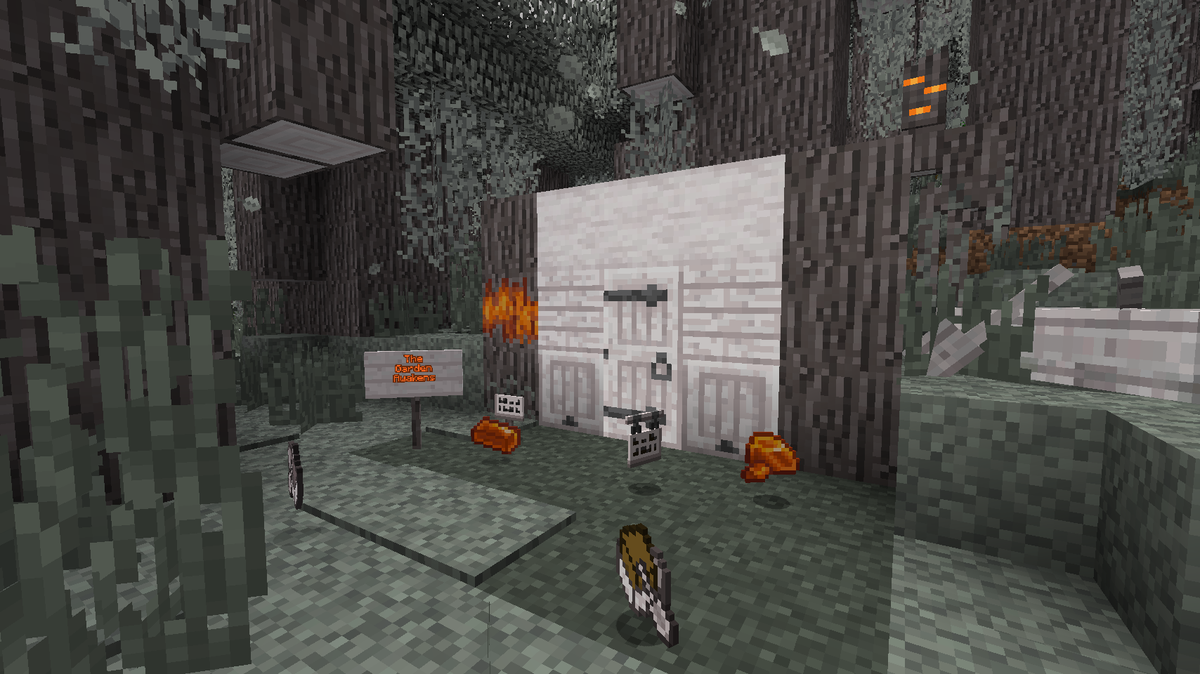
That’s where the updated Programmer Art Texture Pack for Minecraft comes in. The community stepped up and keeps creating new textures in the original style. Every update, every new block, every new item gets designed to blend seamlessly with the classic textures. The resource pack now covers all new updates and gets regular additions. Copper oxidizes in that retro style, deepslate fits right in, and even newer mobs like the copper golem look like Notch drew them years ago.
Items didn’t get left out either. Bundles, goat horns, trial keys, all in that classic 16×16 pixel style. Consistency is what makes the difference. Unlike many high resolution texture packs, everything here stays uniform.
Who is This Texture Pack For?
This pack is mainly for players who’ve known Minecraft forever. If you grew up with the old textures, you’ll feel right at home. People constantly mention how they come back after a long break, launch the game, and are totally surprised by how different everything looks. But younger players are getting into this pack too. Classic Minecraft graphics are popular again on YouTube and TikTok, bringing in new fans. Some PvP texture packs also use elements from Programmer Art.
If you’re into building, your medieval builds especially benefit from this. That’s particularly true for bigger projects where you’re combining different materials. Castles, villages, and fantasy worlds all gain atmosphere from that consistent look.
Performance and Compatibility
At 16×16 pixel resolution, the Programmer Art Pack is one of the most resource-friendly options out there. Minecraft runs smooth even on older computers or laptops. Compared to realistic shaders or 128x texture packs, the FPS difference is huge. If your graphics card isn’t the newest, that’s a big plus.
It also works fine with OptiFine and all the popular mod loaders like Fabric or Forge. Combining it with Vanilla Tweaks or similar tweaks works too. For installation, just load the pack on top of the built-in Programmer Art and it automatically replaces the missing textures. If you want a quick and easy setup, this is it.
If you want even more small improvements, grab Clear Water, FullBright, and Borderless Glass too. All three packs help you get better visibility in Minecraft.
Programmer Art vs. Default Textures
The differences between texture styles are subtle but noticeable. JAPPA’s modern textures are cleaner, have better matched color palettes, and look more organized overall. Programmer Art textures are rougher, have more contrast, and feel more handmade. For a lot of players, that’s exactly the appeal. After all, not everything in Minecraft is supposed to be perfect.
Cobblestone is a good example. The new version has softer transitions and less harsh edges on the block. The old Programmer Art version looks chunkier and more irregular, almost like someone actually stacked those stones by hand. Which style looks better is personal preference. Some players prefer the clean look of the default textures, others swear by the pack we’re showing here.
Netherrack shows the difference most clearly. The old netherrack was almost unusable for many players because it was just ugly. JAPPA made it way more pleasant. Ironically, some players actually like that ugliness and find the Faithful Texture Pack to be a nice middle ground between both styles.
If you love the old Minecraft textures but still want to use all the new content, this pack has you covered. And if you’re a real OG who played the test versions, check out the Old Texture Pack. That one has the really old textures from the Alpha and Beta versions of Minecraft.
Screenshots
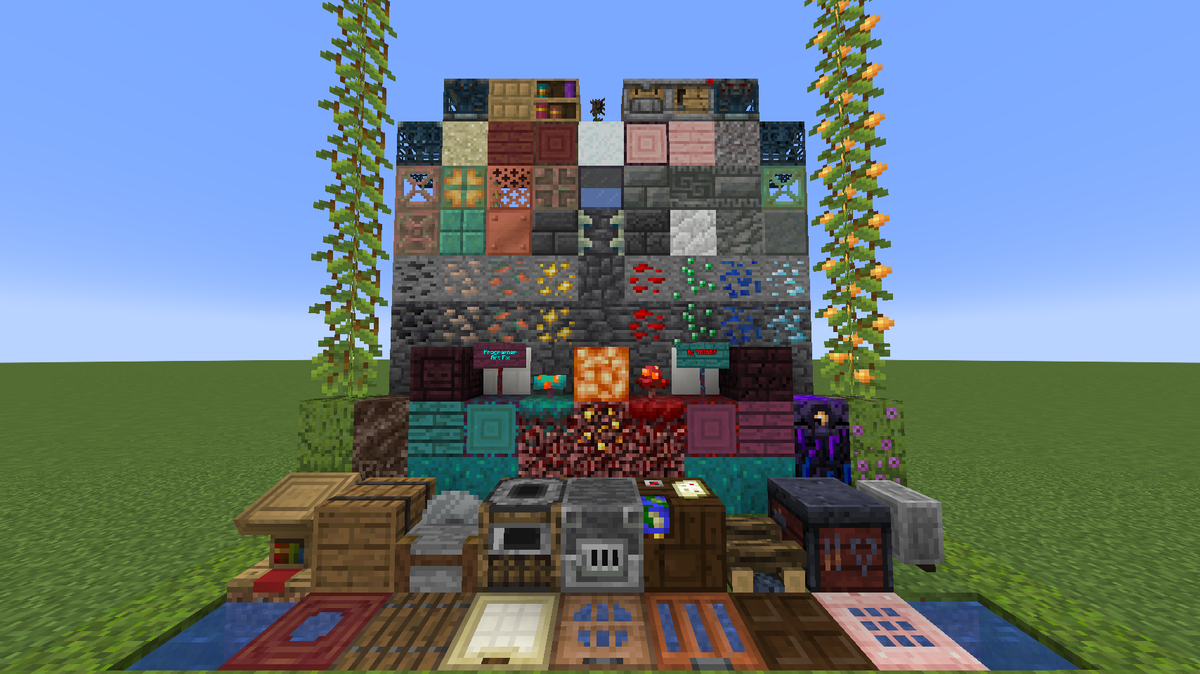
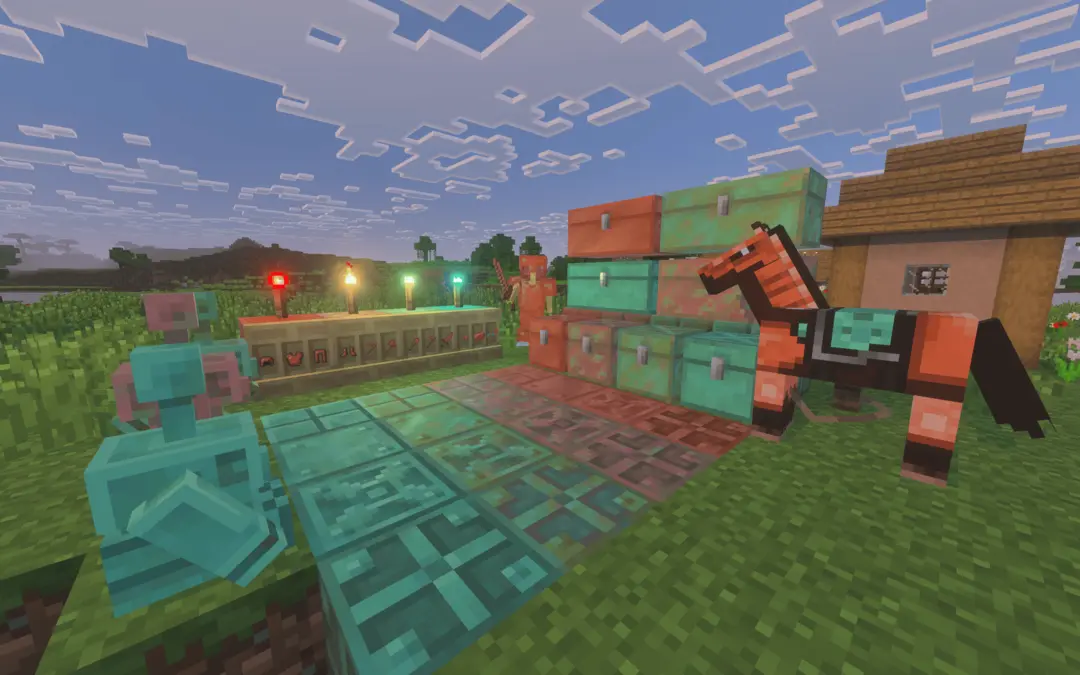
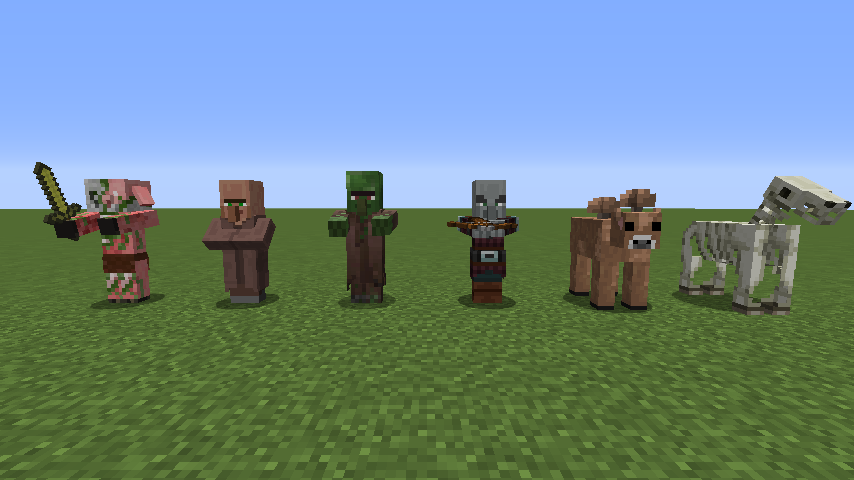

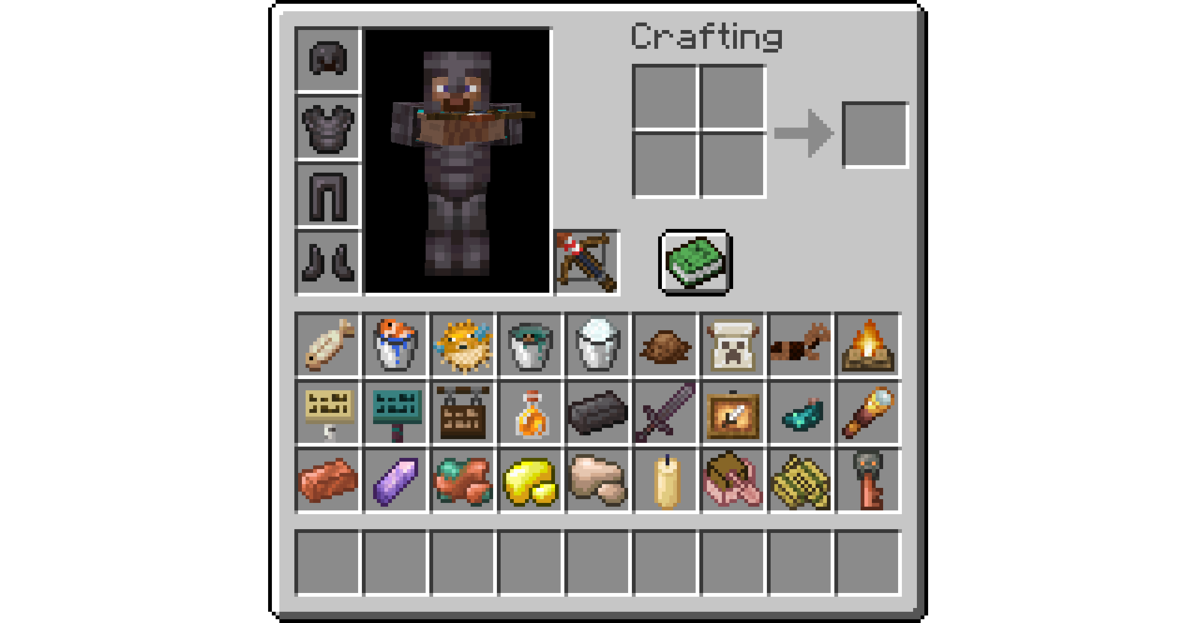
How To Install Programmer Art Texture Pack
Here’s a tutorial on installing Programmer Art in Minecraft Java Edition. If you’re using Minecraft Bedrock Edition and the pack is available for Bedrock/MCPE, you can simply click on the downloaded file to install it.
- Download and install OptiFine, as it is required by most texture packs.
- Download the Programmer Art texture pack for Minecraft from the file section below. Pick the file that matches your Minecraft edition and version.
- Launch Minecraft.
- Click "Options" on the main menu.
- In the options, go to the submenu “Resource Packs”.
- Click "Open Pack Folder" at the bottom left to see a folder titled "resourcepacks".
- Put the downloaded ZIP file into your "resourcepacks" folder. Or, just drag and drop it into the Minecraft window to add the pack.
- You will see the pack on the left side of the resource pack selection menu. Unzip the file if you can't see the pack.
- Hover over the pack thumbnail and click the arrow pointing right. If the game notifies you that the pack is made for a newer or older Minecraft version, simply click “Yes” to proceed. Most textures will still work.
- Click "Done" and all assets have been loaded.
Programmer Art Texture Pack Download
[MCPACK] Download Programmer Art Texture Pack
Java Edition:
[16x] [26.X] Download Programmer Art Texture Pack
[16x] [1.21.X] Download Programmer Art Texture Pack
[16x] [1.20.6 – 1.20.2] Download Programmer Art Texture Pack
[16x] [1.20.1 – 1.20] Download Programmer Art Texture Pack
[16x] [1.19.X] Download Programmer Art Texture Pack
[16x] [1.18.X] Download Programmer Art Texture Pack
[16x] [1.17.X] Download Programmer Art Texture Pack
[16x] [1.16.X] Download Programmer Art Texture Pack
[16x] [1.15.X] Download Programmer Art Texture Pack
[16x] [1.14.X] Download Programmer Art Texture Pack
[16x] [1.13.X] Download Programmer Art Texture Pack

I saw this pack and it reminded me of my childhood when I was playing with my brother and some friends on a hamachi server xD good old times!