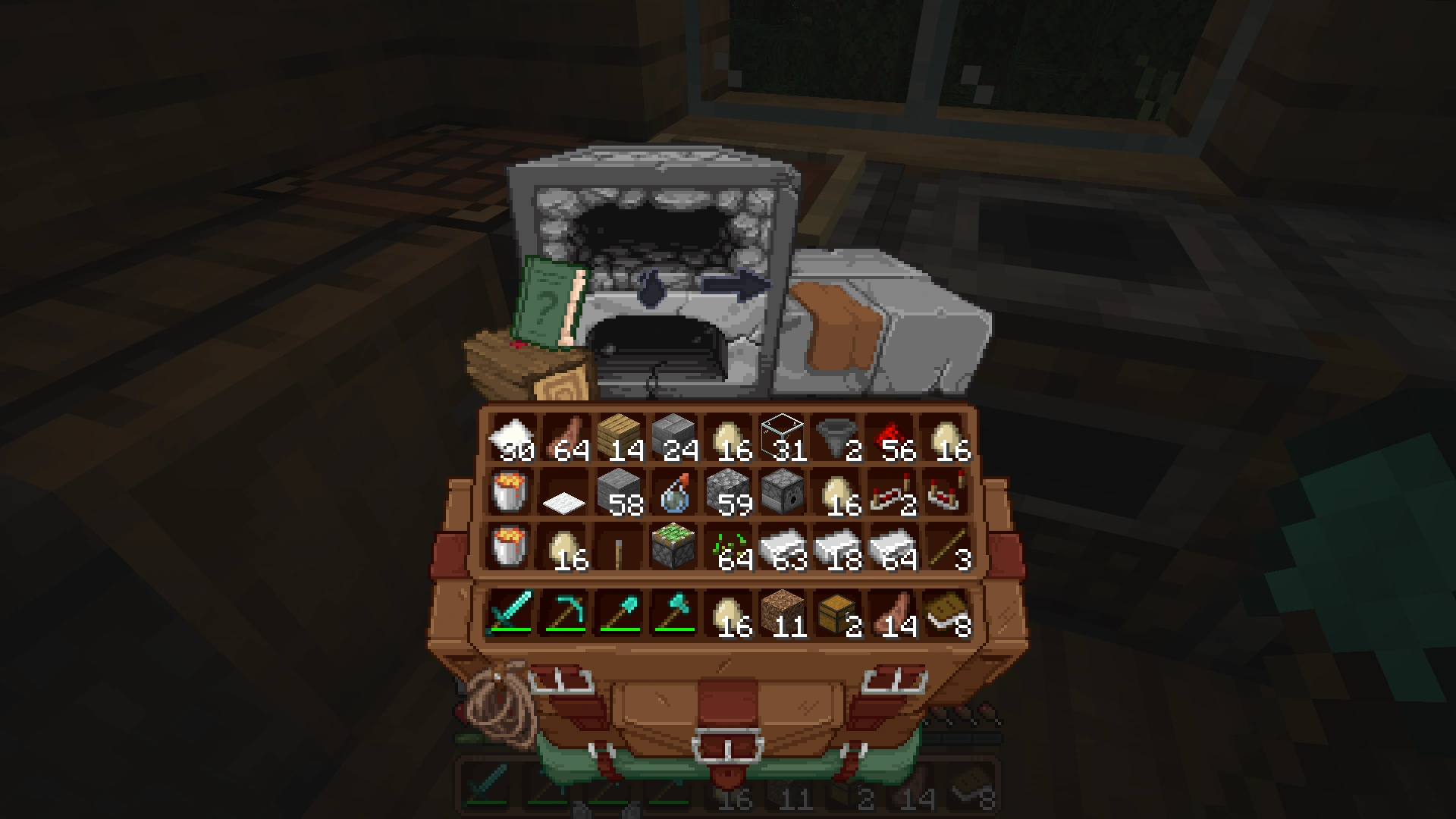
You’re going to love the moment you open your inventory for the first time with the Immersive Interfaces Texture Pack installed. Instead of the usual gray box, you’re suddenly looking at something like an unfolded leather backpack. The new design is genuinely beautiful pixel art with a warm wooden background. When we first tested it, we actually stopped playing for a moment just to take it all in, because it looks that good.
Shrimp’s Immersive Interfaces is a GUI texture pack for Minecraft that exclusively changes the user interface, and the difference it makes is massive. Performance is not a concern at all. The pack runs at 16×16 resolution and only uses core shaders for GUI backgrounds, so even on an older laptop you won’t see any FPS drops.
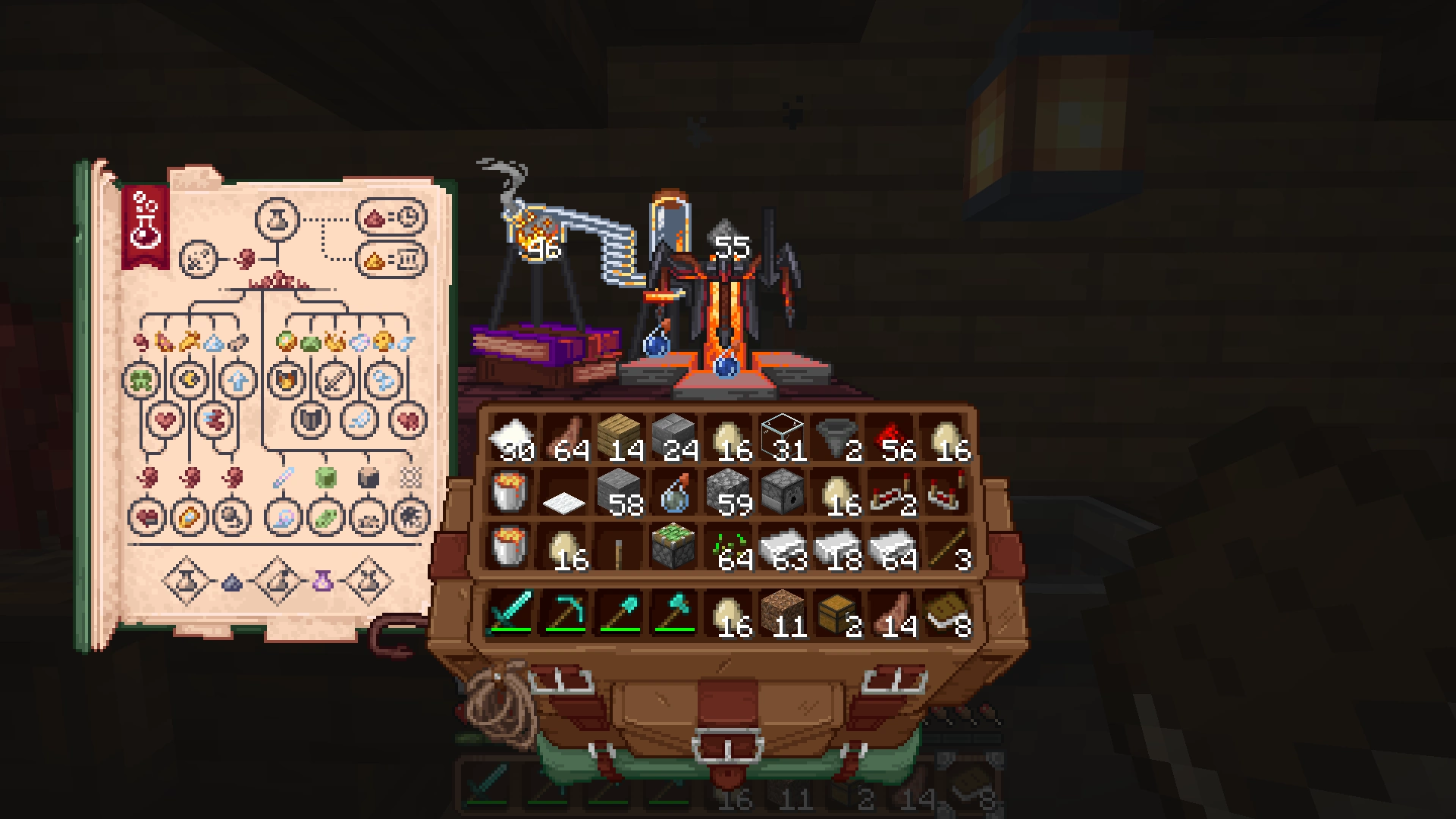
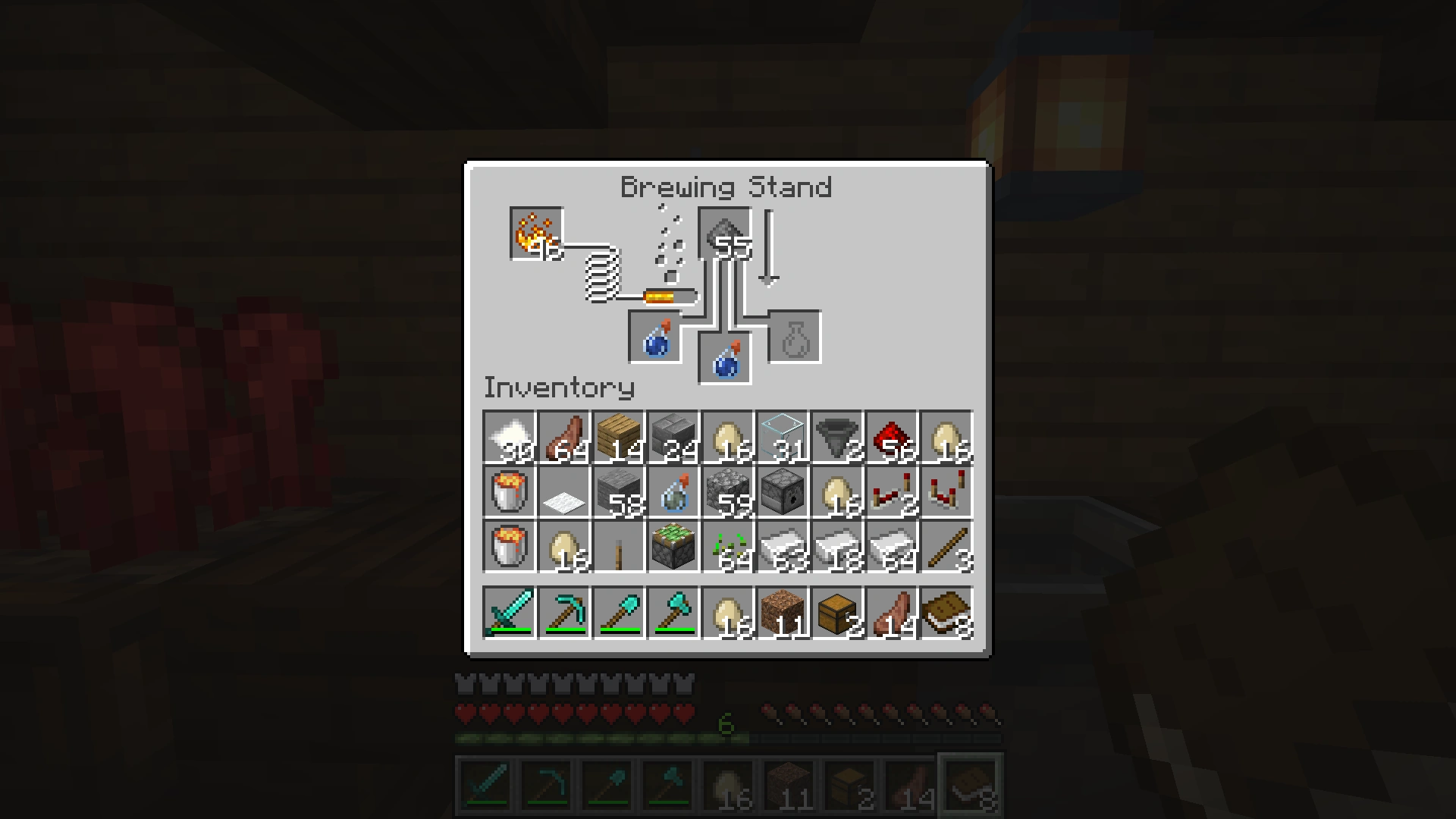
The pack by creator ShrimpSnail does not change any blocks, mobs, or items. Only the small windows you open inside Minecraft. And there are a lot of them: inventory, crafting table, furnace, enchanting table, brewing stand, smithing table, grindstone, loom, cartography table, chest, large chest, ender chest, barrel, smoker, blast furnace, villager trading menu, hopper, dropper, dispenser, and even chest minecarts and chest boats. Every single interface has received its own unique design that fits the corresponding block. The enchanting table features mystical runes and books in the background. The crafting table shows everything laid out on a wooden workbench with blueprints and tools. The brewing stand looks like a real alchemist’s workshop at night.
What surprised us the most: it never feels cluttered or overloaded with details. The developer ShrimpSnail focused each interface on one clear scene rather than piling on unnecessary decorations everywhere. The result is a GUI style that feels like a fantasy RPG while still matching Minecraft’s 16x aesthetic. If you’ve ever played games like Stardew Valley or classic JRPGs, you’ll feel right at home immediately.
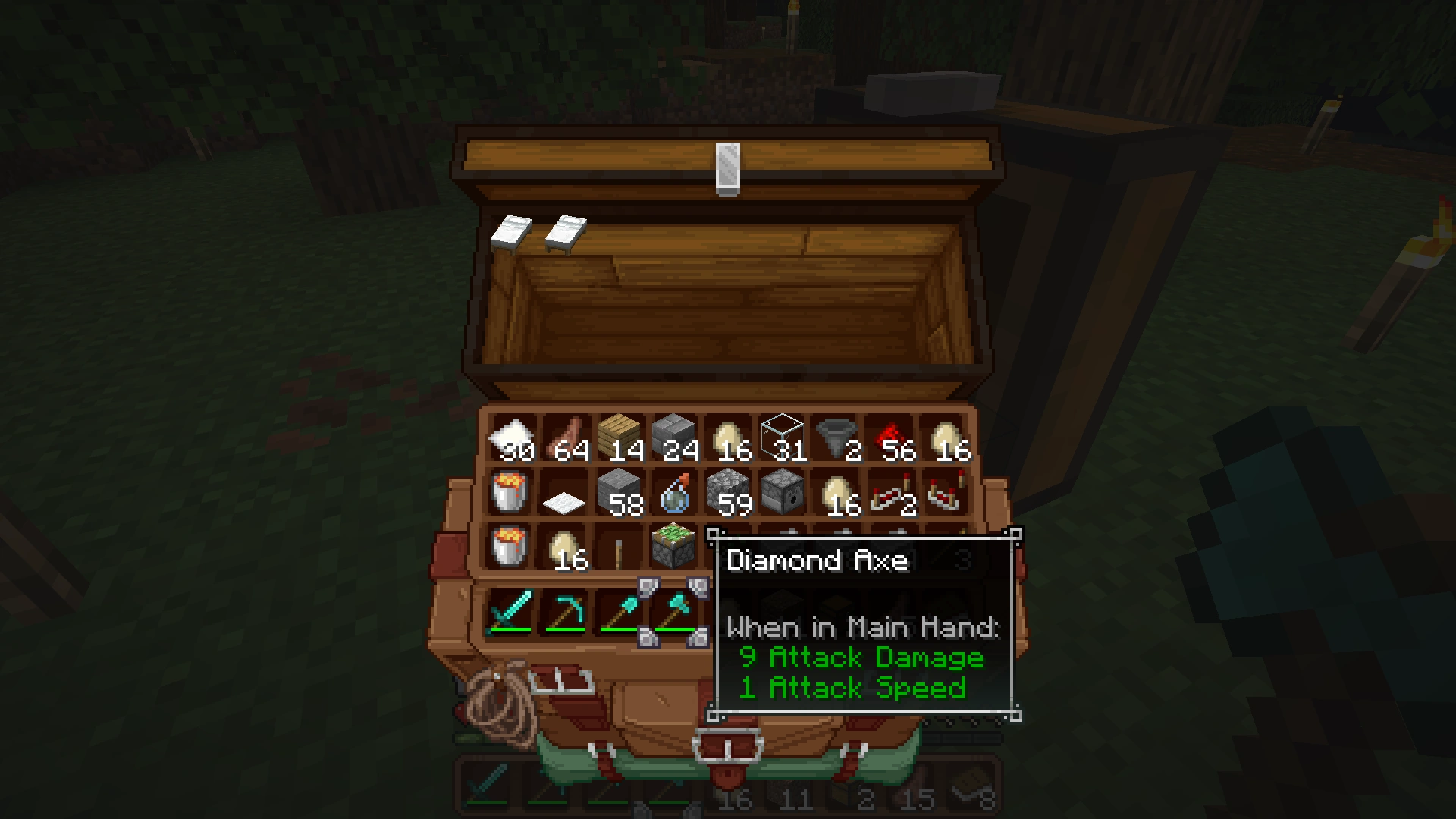
The tooltips have also been redesigned. Golden borders, warm backgrounds, and significantly more readable text compared to vanilla Minecraft without any graphics mods. It sounds like a small detail, but since you’re constantly hovering over items, you notice it all the time.
On our site we’ve also covered other GUI packs like the Transparent GUI and HUD Texture Pack. The difference from Immersive Interfaces comes down to style direction: Transparent GUI makes the interface less visible and improves overview during PvP. Shrimp’s Immersive Interfaces Texture Pack goes the artistic route and makes everything more enjoyable to look at. A similar option is the Colourful Containers Texture Pack, which also adds vibrant backgrounds, but they are not quite as large and visually polished as in the Immersive Interfaces pack, which is why we recommend this one more.
Who should skip it: anyone who prefers a clean, minimal look or runs large modpacks. Some mods add their own custom interfaces that are not covered by this GUI texture pack. For everything else, especially survival worlds, roleplay servers, or anyone looking for a small but meaningful upgrade to vanilla Minecraft, the Immersive Interfaces Texture Pack is one of the best decisions you can make.
Screenshots
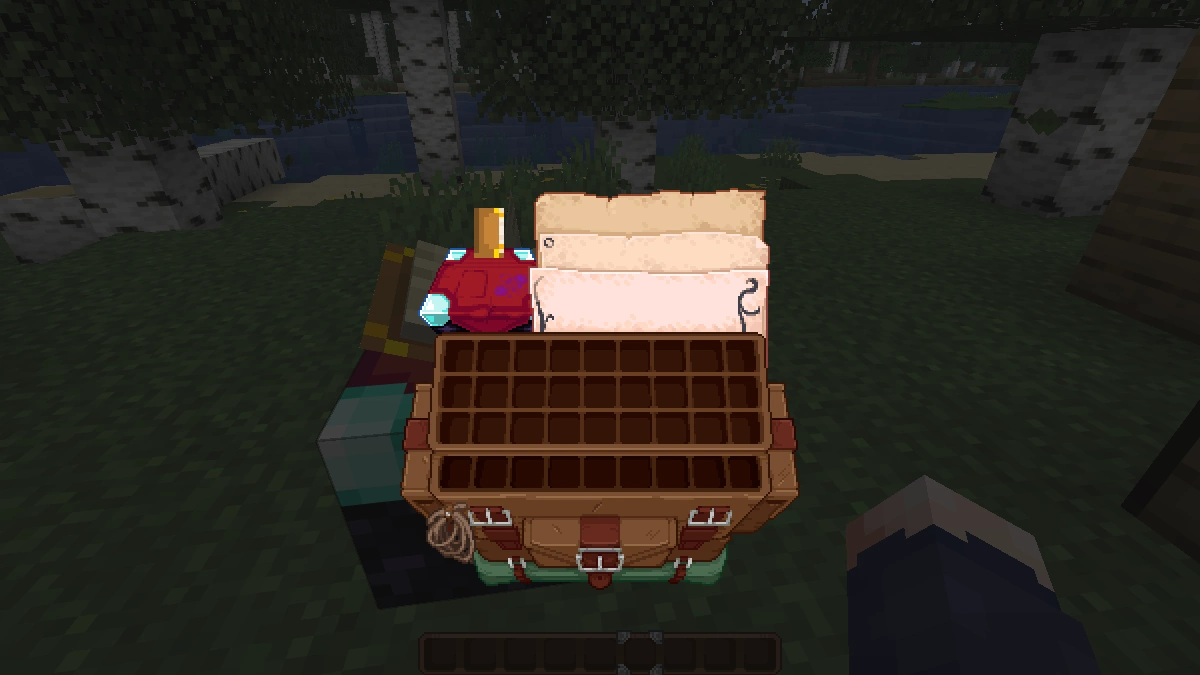
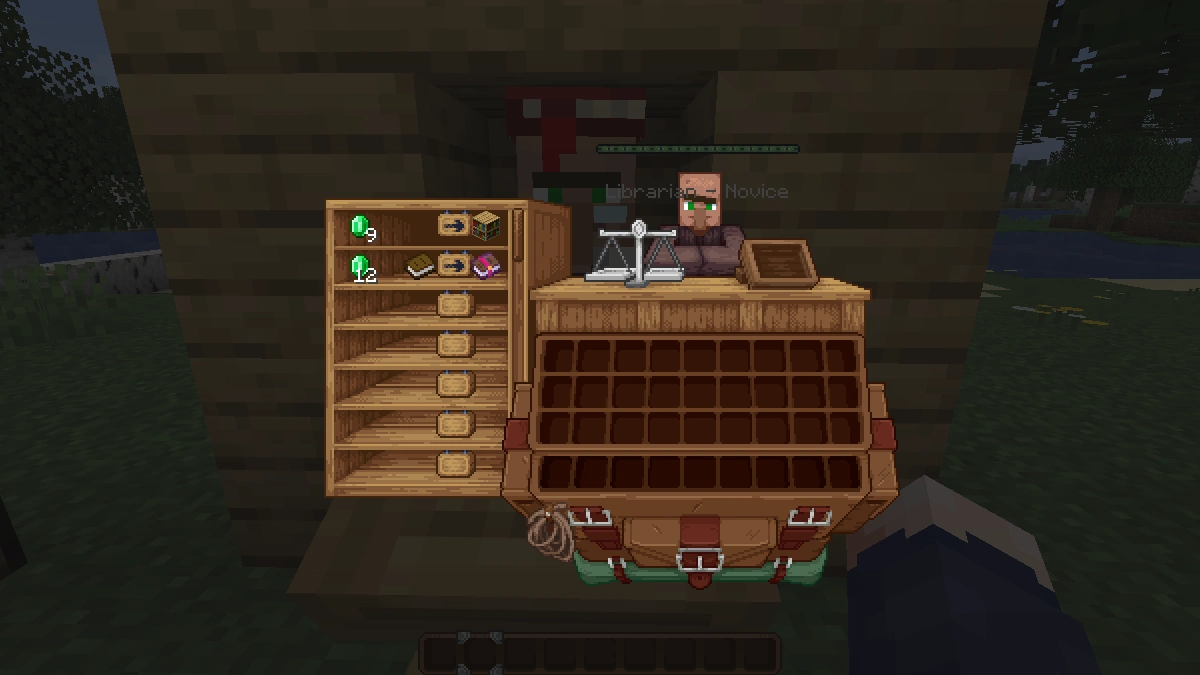
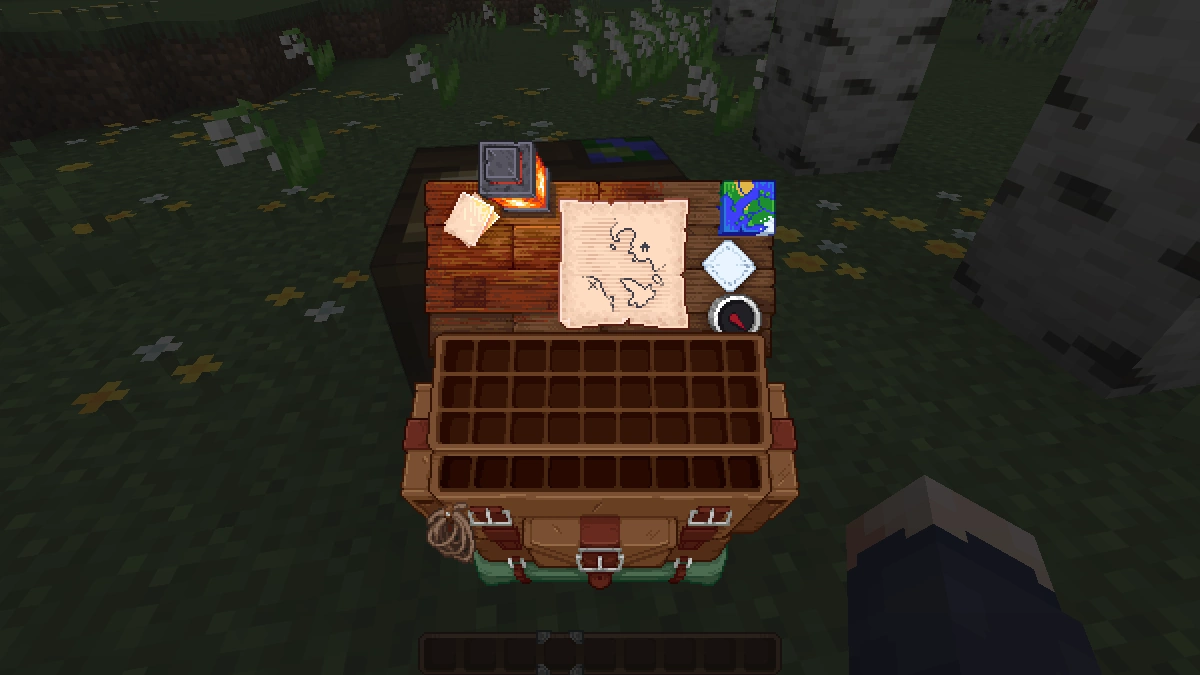
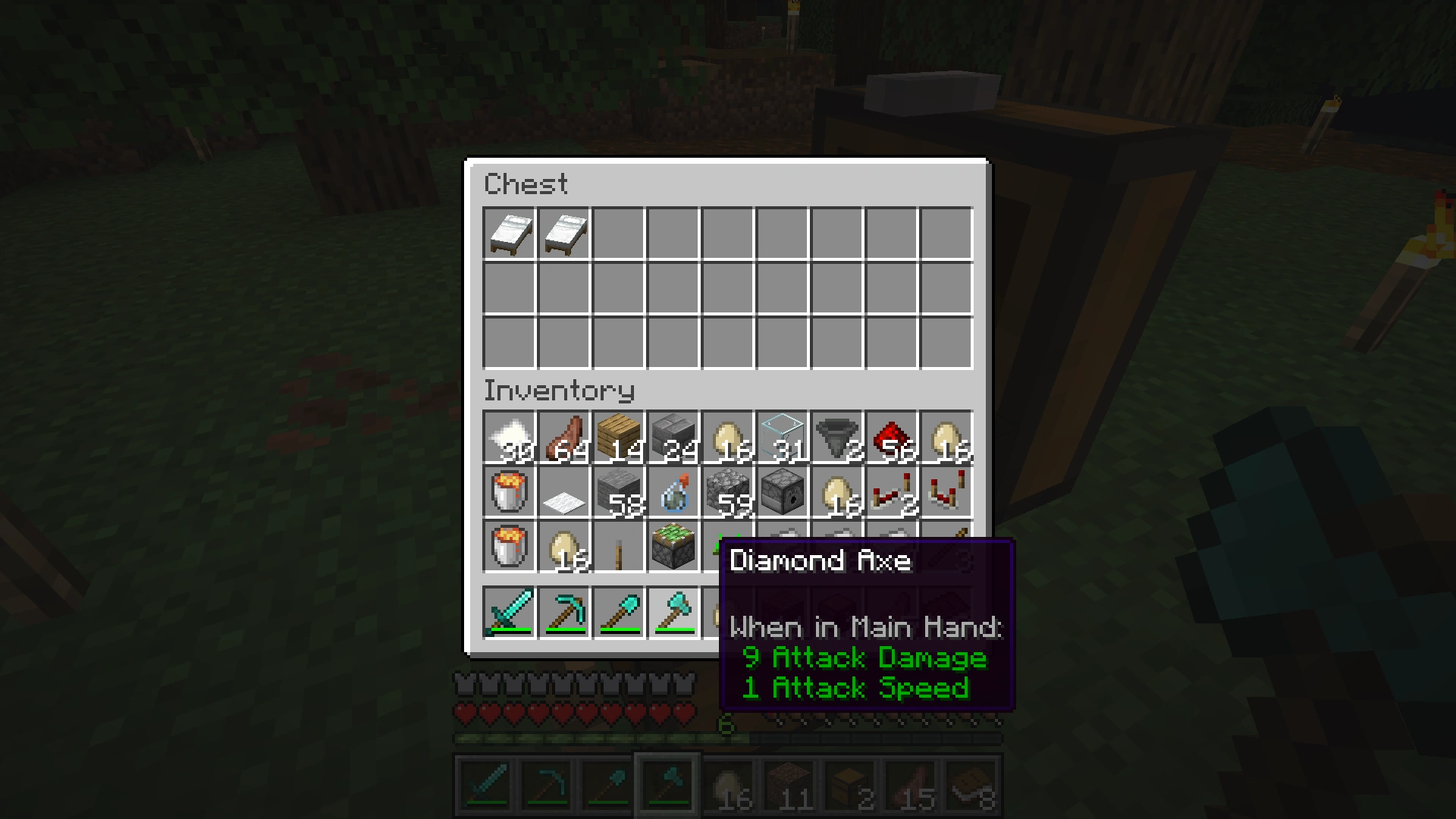
Comparison: Vanilla vs. Immersive Interfaces
Use the before/after slider to see how Immersive Interfaces changes Minecraft compared to vanilla. Use the buttons below to compare different biomes and situations.

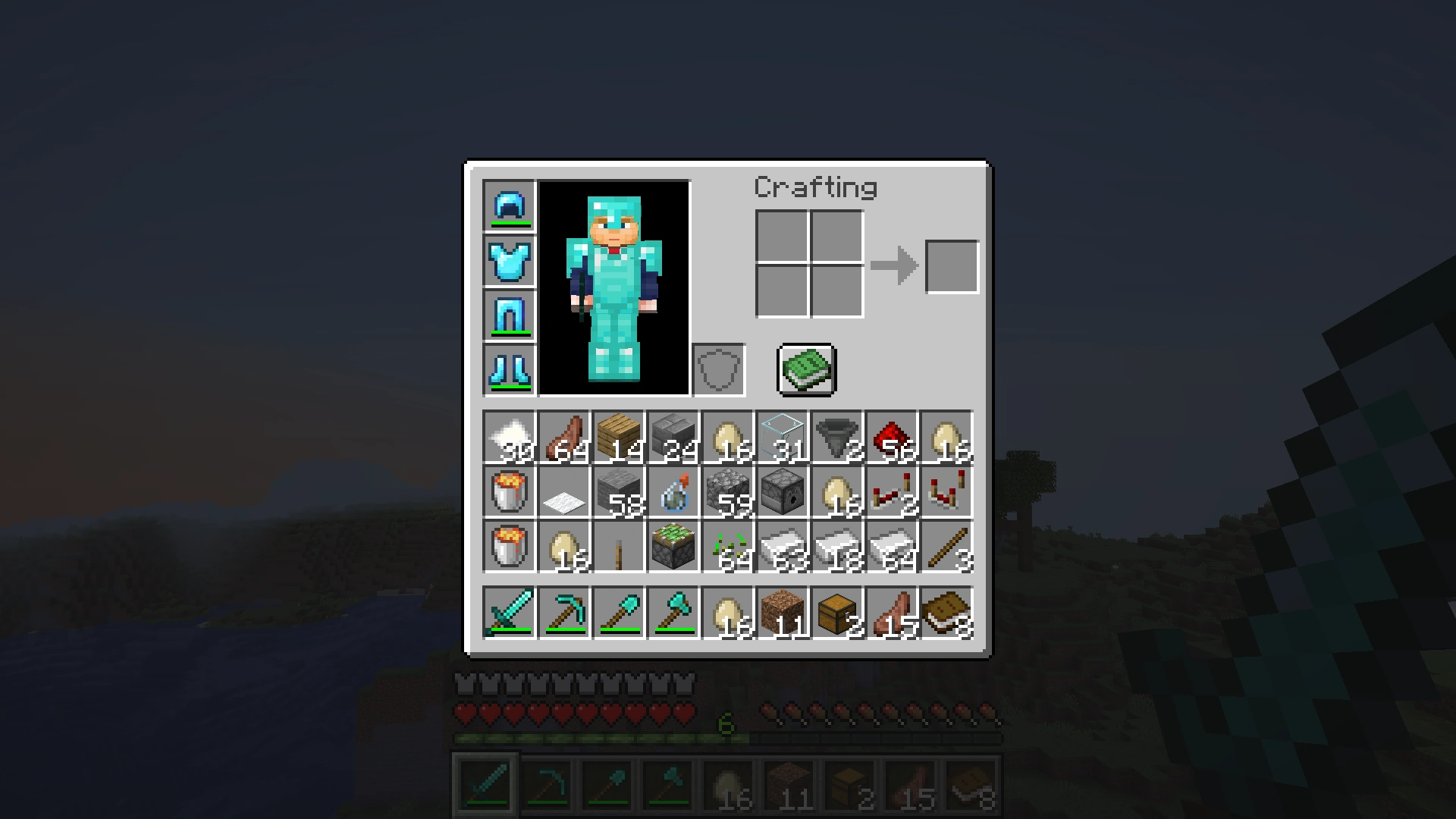

How To Install Immersive Interfaces Texture Pack
Here’s a tutorial on installing Immersive Interfaces in Minecraft Java Edition. If you’re using Minecraft Bedrock Edition and the pack is available for Bedrock/MCPE, you can simply click on the downloaded file to install it.
- Download the Immersive Interfaces texture pack for Minecraft from the file section below. Pick the file that matches your Minecraft edition and version.
- Launch Minecraft.
- Click "Options" on the main menu.
- In the options, go to the submenu “Resource Packs”.
- Click "Open Pack Folder" at the bottom left to see a folder titled "resourcepacks".
- Put the downloaded ZIP file into your "resourcepacks" folder. Or, just drag and drop it into the Minecraft window to add the pack.
- You will see the pack on the left side of the resource pack selection menu. Unzip the file if you can't see the pack.
- Hover over the pack thumbnail and click the arrow pointing right.
If the game notifies you that the pack is made for a newer or older Minecraft version, simply click “Yes” to proceed. Most textures will still work.
- Click "Done" and all assets have been loaded.

Please include the nautilus UI.