We tested the Transparent GUI and HUD Texture Pack for a while, and it does exactly what it says. Every menu goes transparent, slots stay readable, and you always see the world behind them. If you want a clean interface that gets out of your way, this is the one.
What Does the Transparent GUI and HUD Texture Pack Do?
The pack only touches your UI. Blocks, mobs, and items are completely unchanged. This isn’t a full texture pack that reskins the whole game. It makes every Minecraft menu transparent. That’s it.
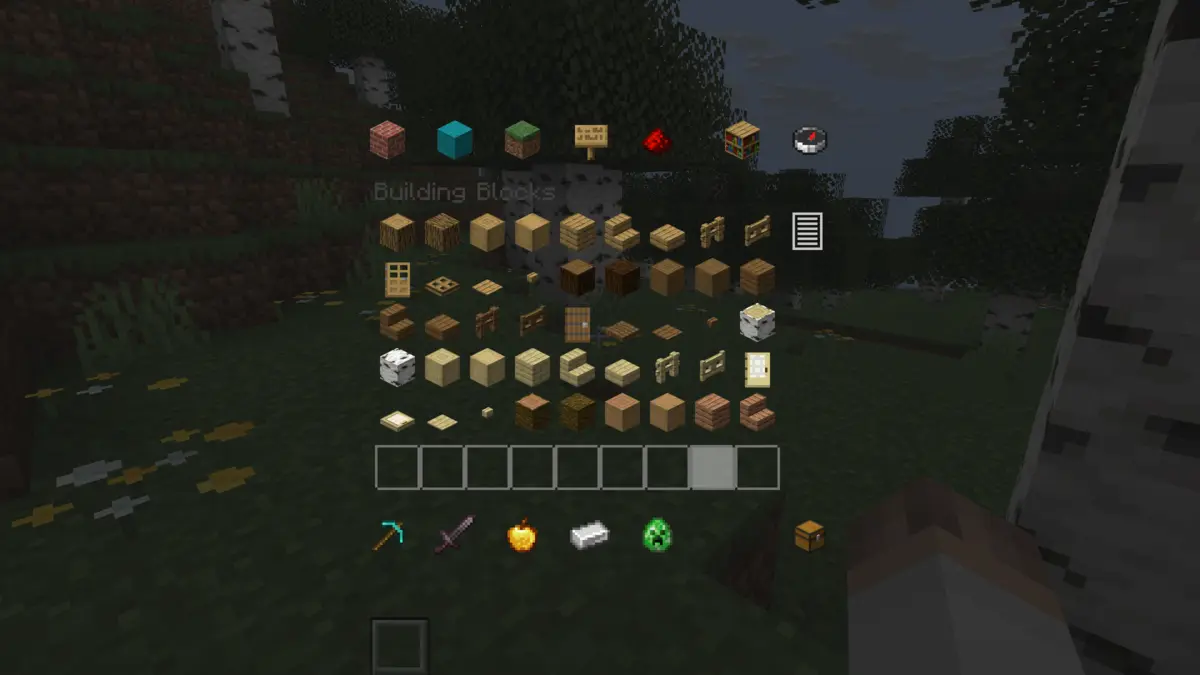
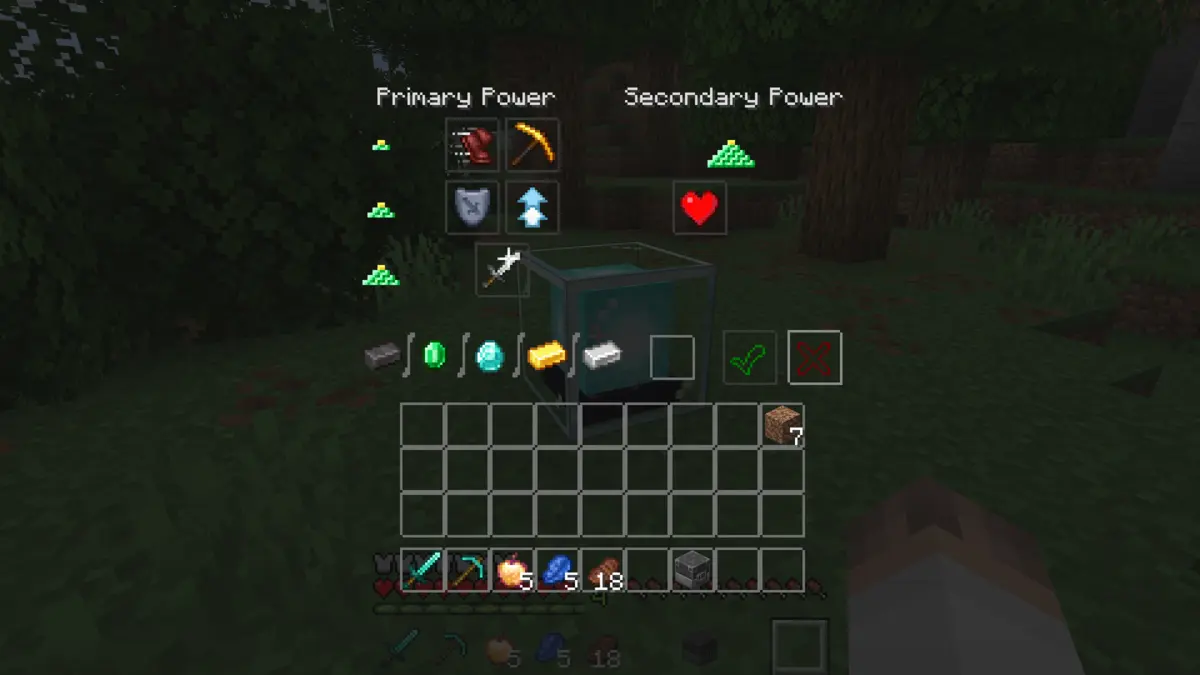
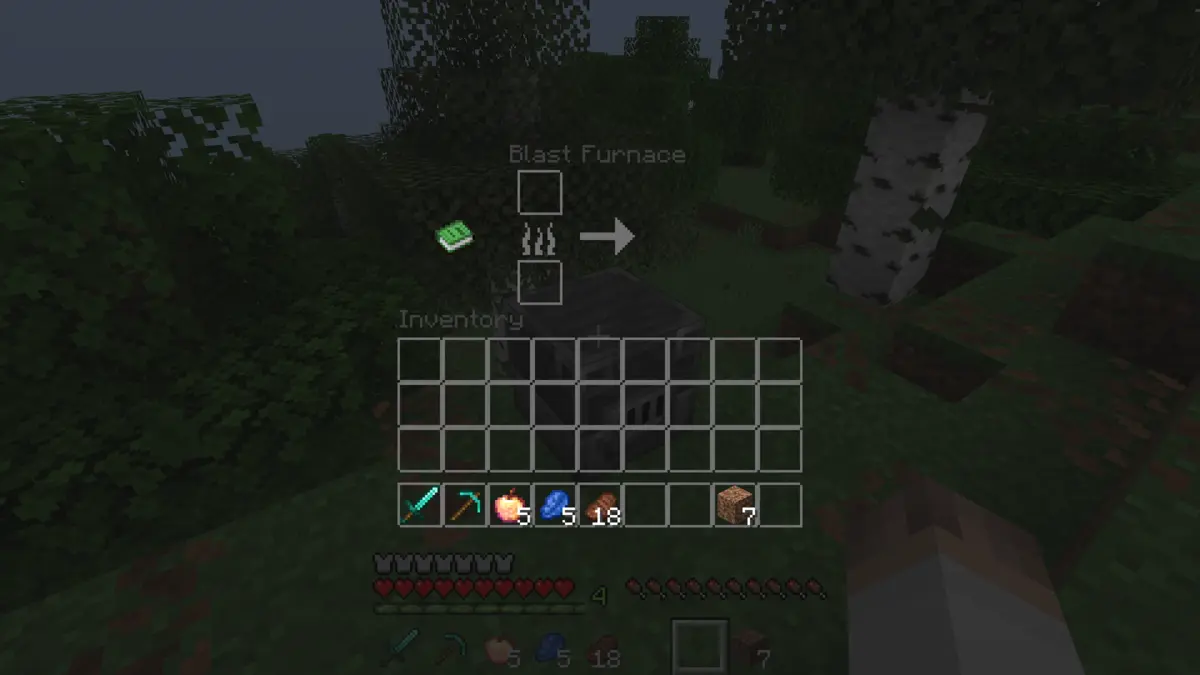
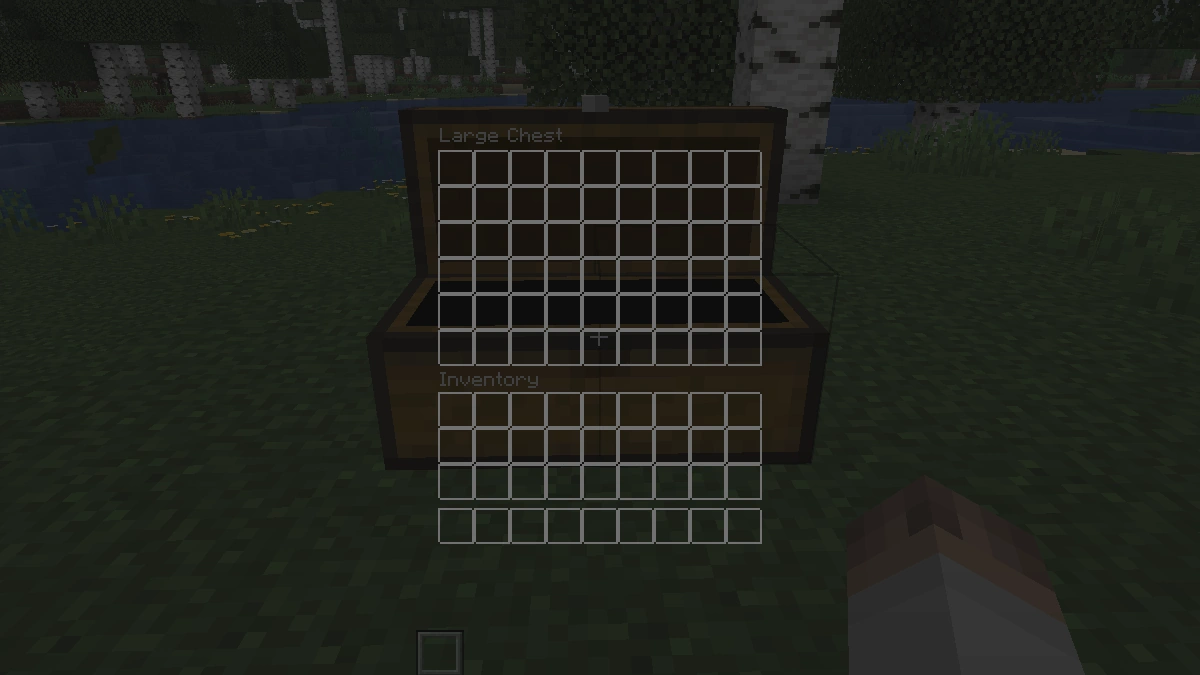
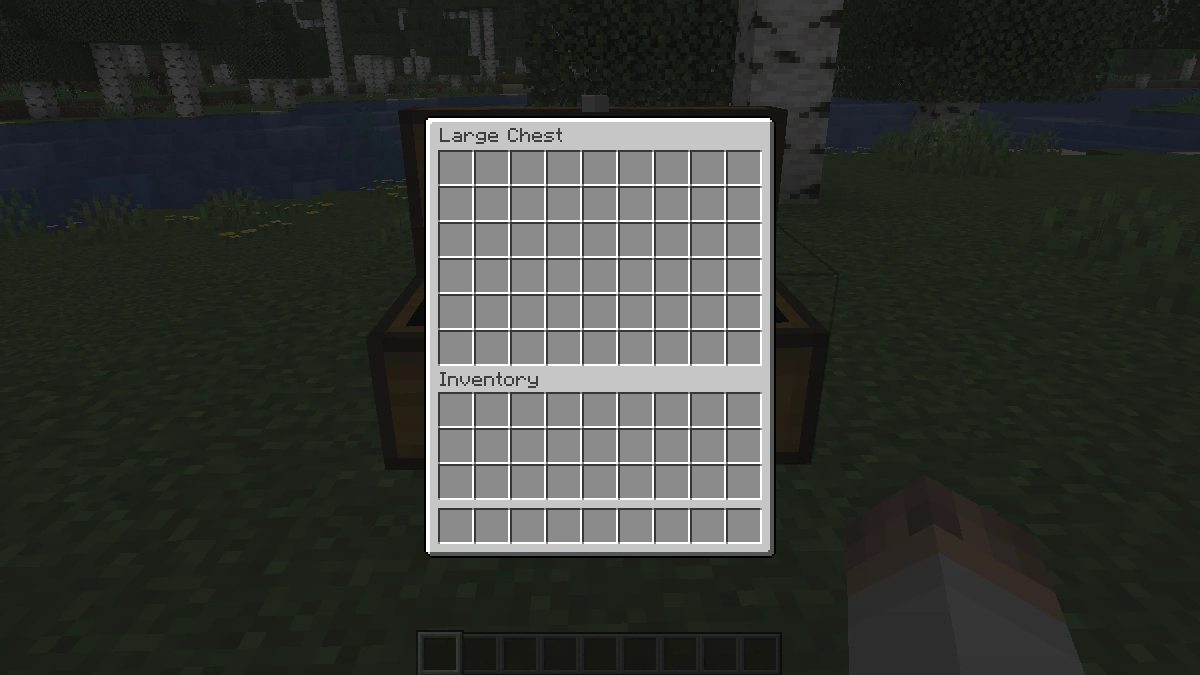
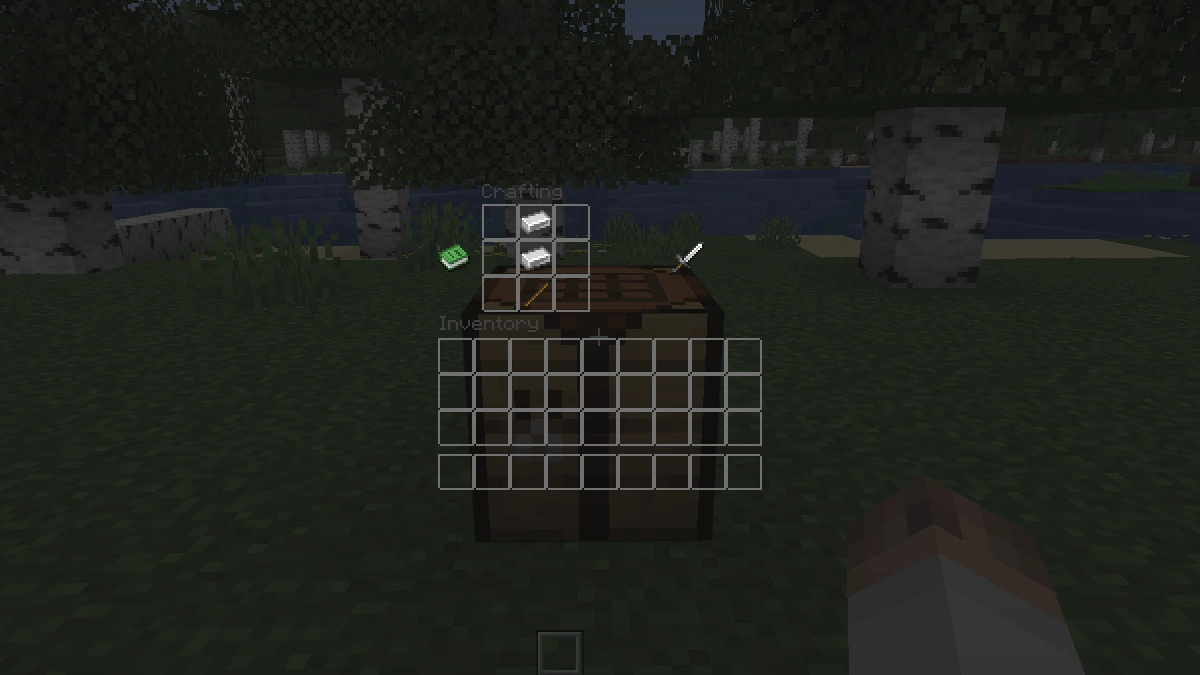
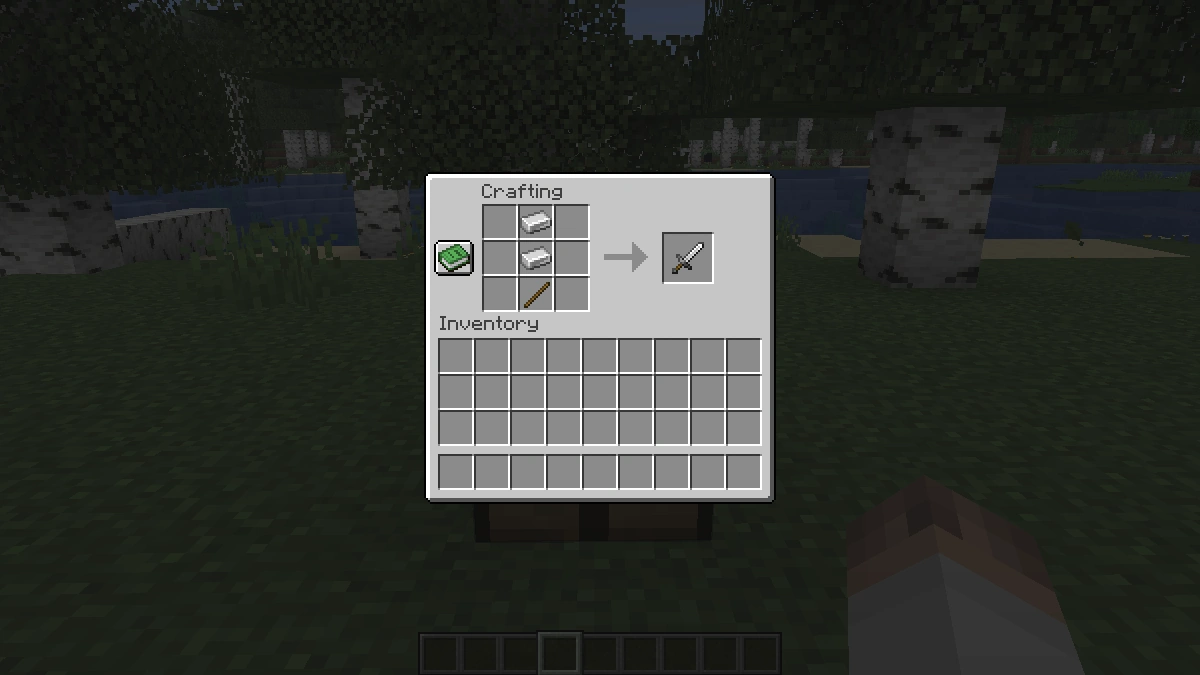
So your inventory, crafting table, chests, furnaces, brewing stand, and every other container lose that flat gray background. The world shows through, and the item slots stay just as readable as before. It’s actually more useful than it sounds. When we tested it with Minecraft shaders, something clicked: you can now see sunrays, water animations, and lighting effects even while you have a menu open. Normally the gray background blocks all of that. Not here.
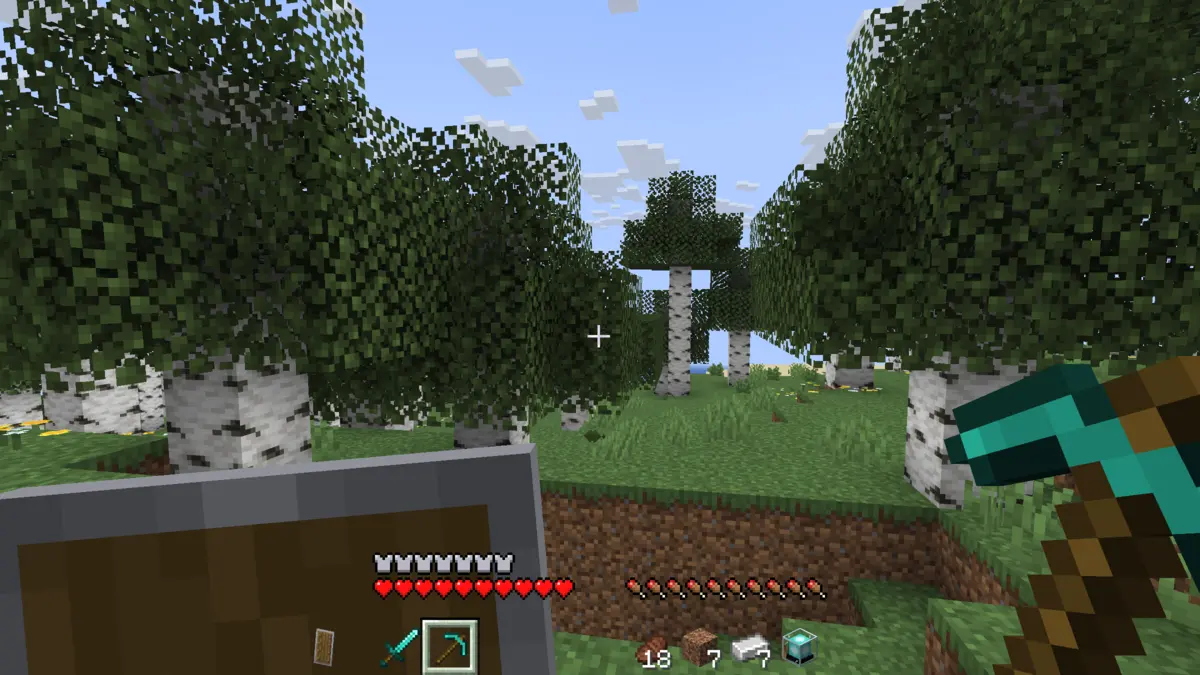
The HUD gets the same treatment. Your hotbar loses its slot backgrounds. Items and the selection box are still there, the gray fill is just gone. Health, hunger, and XP bars still work fine but look noticeably cleaner. Potion effect icons show up directly on screen now with no frame around them.
Everything That Goes Transparent:
- Survival inventory
- Creative inventory with search bar and tabs
- Crafting table
- Recipe book
- Furnace
- Brewing stand
- Enchanting table
- Anvil
- Beacon
- Dispenser and dropper
- Hopper
- Chests (all variants)
- Horse inventory
- Villager trading menu
- Books
- Pumpkin overlay and fire overlay
- Advancements tab (1.12+)
- Partially transparent achievements screen (1.8 to 1.11 only)
- Blast furnace, smoker, barrel, stonecutter, cartography table, and grindstone (1.14+)
- Smithing table (1.16+, updated GUI from 1.19.4)
- Transparent shields (1.9 to 1.13 only)
Who Should Use It?
If you want a transparent, minimalist interface, choose this pack. If you want color, animations, and effects in your interface, you’re better off with the Animated RGB GUI Texture Pack or the Colorful Containers GUI Texture Pack. That’s the key difference between these three packs.
PvP players get the most out of it. You can check your inventory mid-fight and still see what’s happening around you. In BedWars or SkyWars that matters a lot. Someone can rush you in seconds, and a gray menu blocking your screen is the last thing you want. Fewer surprises, more rounds survived.
Limitations Worth Knowing
Two things to know before you download. Transparent shields don’t work in 1.14 and above. Not a bug. Mojang changed how shields are rendered in snapshot 19w45a in 2019, and there’s no way around it through a resource pack. If you need transparent shields specifically, you’d have to go back to 1.13 or older.
Otherwise the pack is solid. It’s been around for years, still gets updated, and has hundreds of thousands of downloads on Modrinth and CurseForge. One of the most downloaded UI packs out there. We’d recommend it.
Screenshots
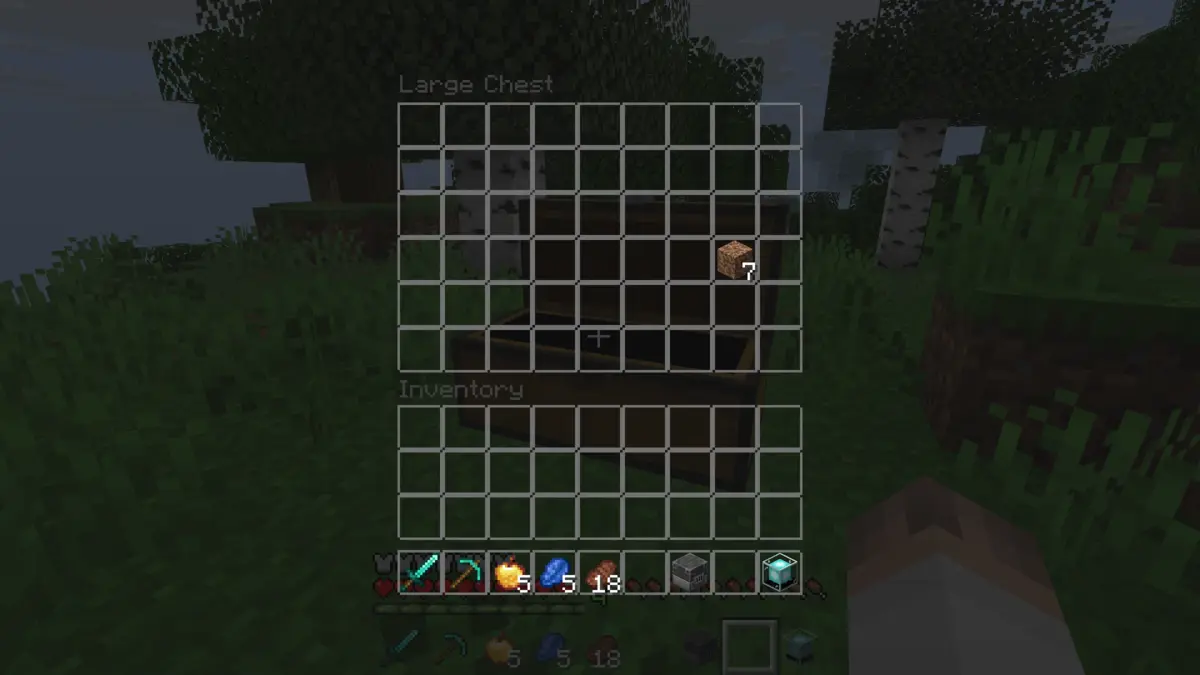
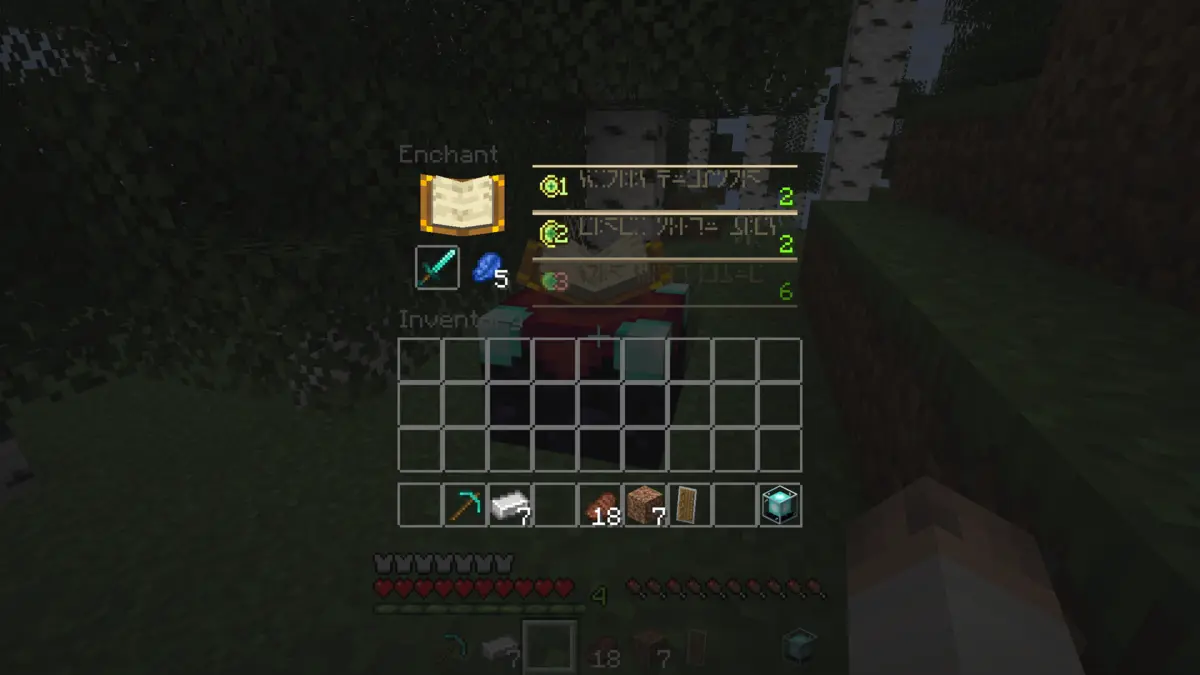
Comparison: Vanilla vs. Transparent GUI and HUD
Use the before/after slider to see how Transparent GUI and HUD changes Minecraft compared to vanilla. Use the buttons below to compare different biomes and situations.
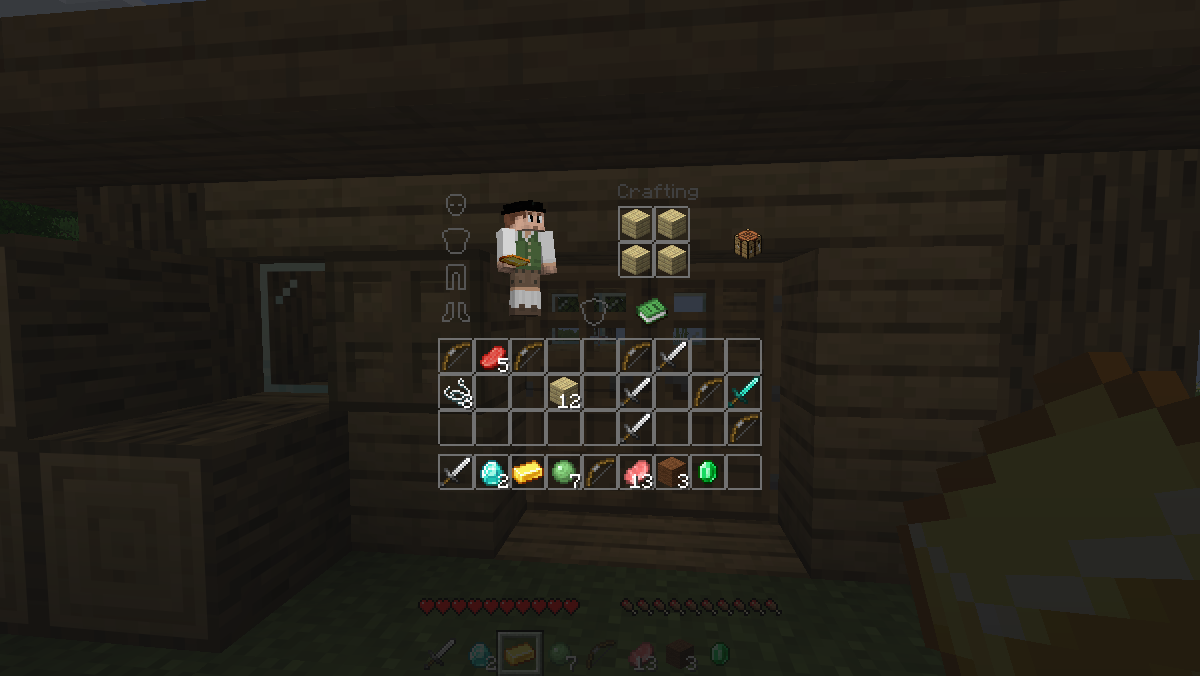
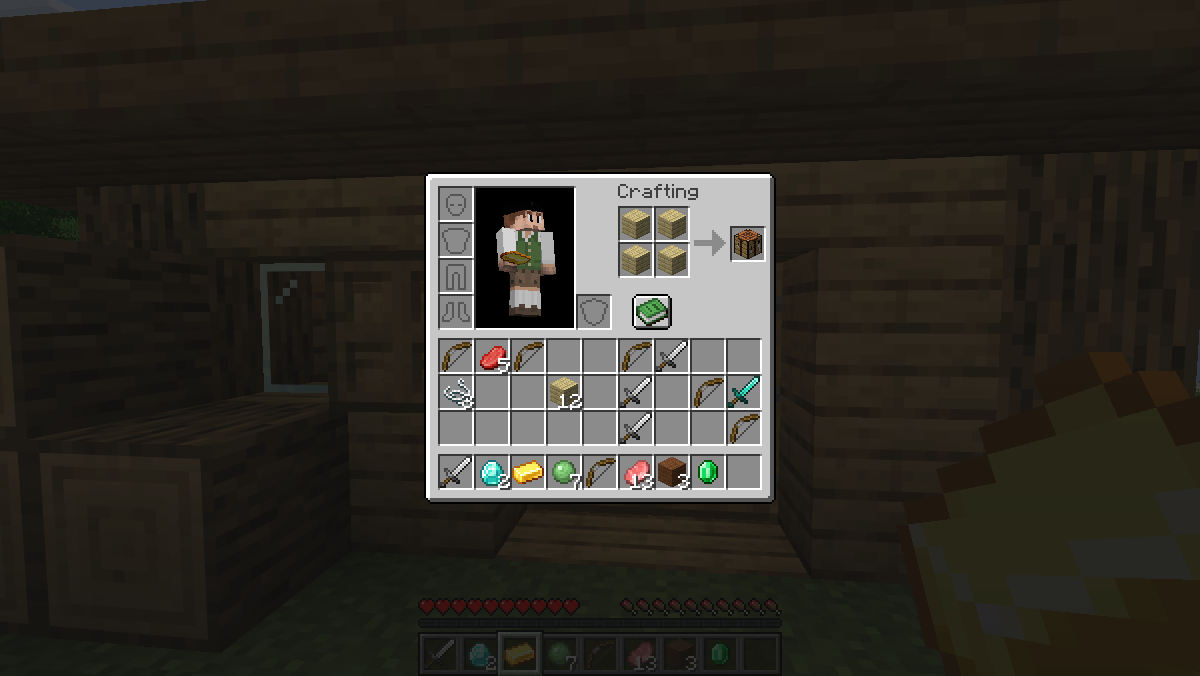
How To Install Transparent GUI and HUD Texture Pack
Here’s a tutorial on installing Transparent GUI and HUD in Minecraft Java Edition. If you’re using Minecraft Bedrock Edition and the pack is available for Bedrock/MCPE, you can simply click on the downloaded file to install it.
- Download the Transparent GUI and HUD texture pack for Minecraft from the file section below. Pick the file that matches your Minecraft edition and version.
- Launch Minecraft.
- Click "Options" on the main menu.
- In the options, go to the submenu “Resource Packs”.
- Click "Open Pack Folder" at the bottom left to see a folder titled "resourcepacks".
- Put the downloaded ZIP file into your "resourcepacks" folder. Or, just drag and drop it into the Minecraft window to add the pack.
- You will see the pack on the left side of the resource pack selection menu. Unzip the file if you can't see the pack.
- Hover over the pack thumbnail and click the arrow pointing right.
If the game notifies you that the pack is made for a newer or older Minecraft version, simply click “Yes” to proceed. Most textures will still work.
- Click "Done" and all assets have been loaded.
If you are using multiple texture packs at the same time, the transparent GUI pack must be at the top of the list. Otherwise, another pack will overwrite the transparent textures.
Transparent GUI and HUD Texture Pack Download
The Clean UI Texture Pack does something similar for Bedrock. Transparent menus, a smoother font, three color themes, and redesigned mobile controls. Works on Android, iOS, and Windows.
Java Edition:
[16x] [26.2.x – 26.1.x] Download Transparent GUI and HUD Texture Pack
[16x] [1.21.11 – 1.21.9] Download Transparent GUI and HUD Texture Pack
[16x] [1.21.8 – 1.21] Download Transparent GUI and HUD Texture Pack
[16x] [1.20.6 – 1.20.5] Download Transparent GUI and HUD Texture Pack
[16x] [1.20.4 – 1.20.3] Download Transparent GUI and HUD Texture Pack
[16x] [1.20.2] Download Transparent GUI and HUD Texture Pack
[16x] [1.20.1 – 1.20] Download Transparent GUI and HUD Texture Pack
[16x] [1.19.x] Download Transparent GUI and HUD Texture Pack
[16x] [1.18.x] Download Transparent GUI and HUD Texture Pack
[16x] [1.17.x] Download Transparent GUI and HUD Texture Pack
[16x] [1.16.x] Download Transparent GUI and HUD Texture Pack
[16x] [1.15.x] Download Transparent GUI and HUD Texture Pack
[16x] [1.14.x] Download Transparent GUI and HUD Texture Pack
[16x] [1.13.X] Download Transparent GUI and HUD Texture Pack
[16x] [1.12.x] Download Transparent GUI and HUD Texture Pack
[16x] [1.11.x] Download Transparent GUI and HUD Texture Pack
[16x] [1.10.x – 1.9.x] Download Transparent GUI and HUD Texture Pack
[16x] [1.8.x] Download Transparent GUI and HUD Texture Pack